
How to stabilize shaky video online
A short, handheld clip can be difficult to watch when the camera jitters. You can try reducing that shake in your browser without installing a desktop video editor. The best result depends on the footage: small hand movements are easier to correct than extreme jumps or motion blur.
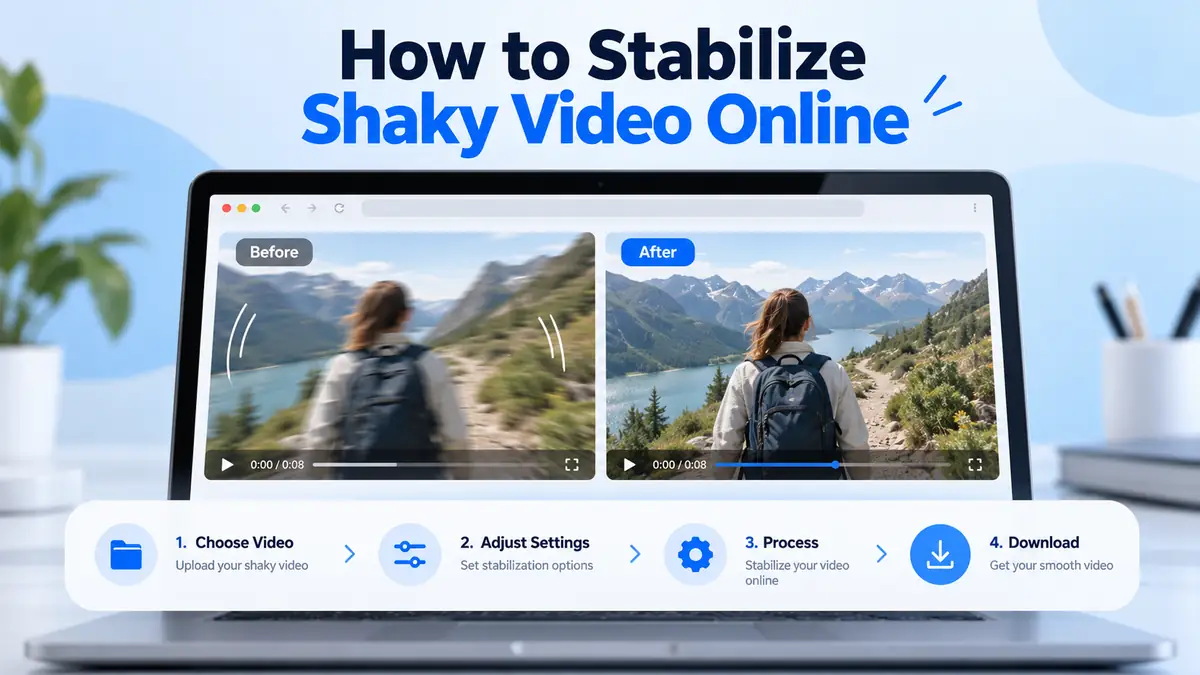
Start with a short test clip
Before processing an entire recording, choose a short representative section—especially if the original file is large or high-resolution. Browser-based video processing uses your device's memory and CPU, so long or complex clips may take substantially longer.
If you can, keep an untouched copy of the original video so you can compare the result and try another setting.
Stabilize your video in five steps
- Open the free online video stabilizer on a desktop or mobile browser.
- Select your video or drag it into the upload area.
- After the processing options appear, start with Auto Mode, Balanced quality and the default 50% strength. These are starting points, not a guarantee of the best result.
- Select Start Processing. Keep the page open while the browser analyses and produces a new video file; processing time varies with your device and footage.
- When the result is ready, play the original and processed previews and download the output only if the change is useful.
What if the result still looks shaky?
Stabilization can reduce motion between frames, but it cannot reconstruct all detail lost when the camera moves sharply during exposure. If the video has strong blur, rolling-shutter wobble, or rapid intentional camera movement, the improvement may be small or uneven.
Review the output beside your original. Try a short clip or adjust the strength rather than repeatedly waiting for a lengthy full recording. See our troubleshooting guide if the video looks unchanged or processing appears stalled.
Tips before you record next time
- Use two hands or a support when recording handheld footage.
- Keep movements smooth rather than making sudden turns.
- Use brighter lighting where possible to reduce motion blur.
- Avoid aggressive digital zoom, which magnifies visible shake.
These recording techniques help preserve detail that software stabilization cannot restore afterwards.
Is the video uploaded to a server?
The stabilization tool is designed to process the selected video in your browser using FFmpeg. The video file itself is not uploaded to our server for processing. Browser code and other page resources may still be downloaded to load the application; do not confuse local video processing with a completely offline website.
Frequently asked questions
Can I stabilize a phone video?
You can select a phone-recorded video in a supported browser. Compatibility and performance depend on its format, codec, resolution, and your device's available resources.
How long does video stabilization take?
There is no fixed completion time. Video duration, format, resolution, device memory, and processing mode all affect it. Test a short clip first.
Does stabilization remove motion blur?
Not necessarily. Stabilization aims to reduce unwanted frame-to-frame movement; blur already recorded in a frame may remain.